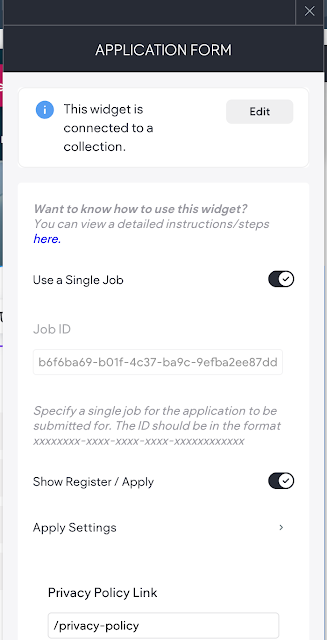
When setting up your job board or recruitment pages, ensuring that candidate responses map correctly to the right job posting is essential. If a user submits an application from a specific job detail page, the system must be configured to process that application specifically for that single job.
If candidates are applying to jobs and their submissions are not linking to the correct role, this setting may have been accidentally disabled.
Why the "Single Job" Setting is Required
When an application form is placed directly onto a Job Detail Page (the specific layout or dynamic template used to show an individual job description), the form needs to know exactly which job the candidate is viewing.
Enabling the Single Job option for that form ensures that:
The candidate's application is automatically attached to the correct job ID.
Recruiters can accurately track which job posting generated the application.
You avoid orphaned or mismatched submissions in your candidate pipeline.
Note: This configuration is strictly for application forms that live directly on the specific job detail page itself. It does not apply to general application landing pages or multi-job application funnels.
How to Configure the Form to Use a Single Job
If this feature was accidentally turned off, you can resolve the issue by updating the form settings within the editor:
Open your site editor and navigate to your Job Detail Page template.
Click on the Application Form widget to open its settings panel.
Locate the data mapping or submission configuration settings (typically under the Content or Form Options section).
Find the option labeled Use Single Job (or your platform's equivalent setting for job-specific context tracking).
Toggle this option ON.
Republish your site to apply the changes.
Troubleshooting Mismatched Submissions
If you notice that test applications are missing job titles or are not showing up under the correct job tracking dashboard, always double-check this setting first. It is easy to accidentally toggle it off when editing general form fields or updating your page layouts.
Was this article helpful?
That’s Great!
Thank you for your feedback
Sorry! We couldn't be helpful
Thank you for your feedback
Feedback sent
We appreciate your effort and will try to fix the article