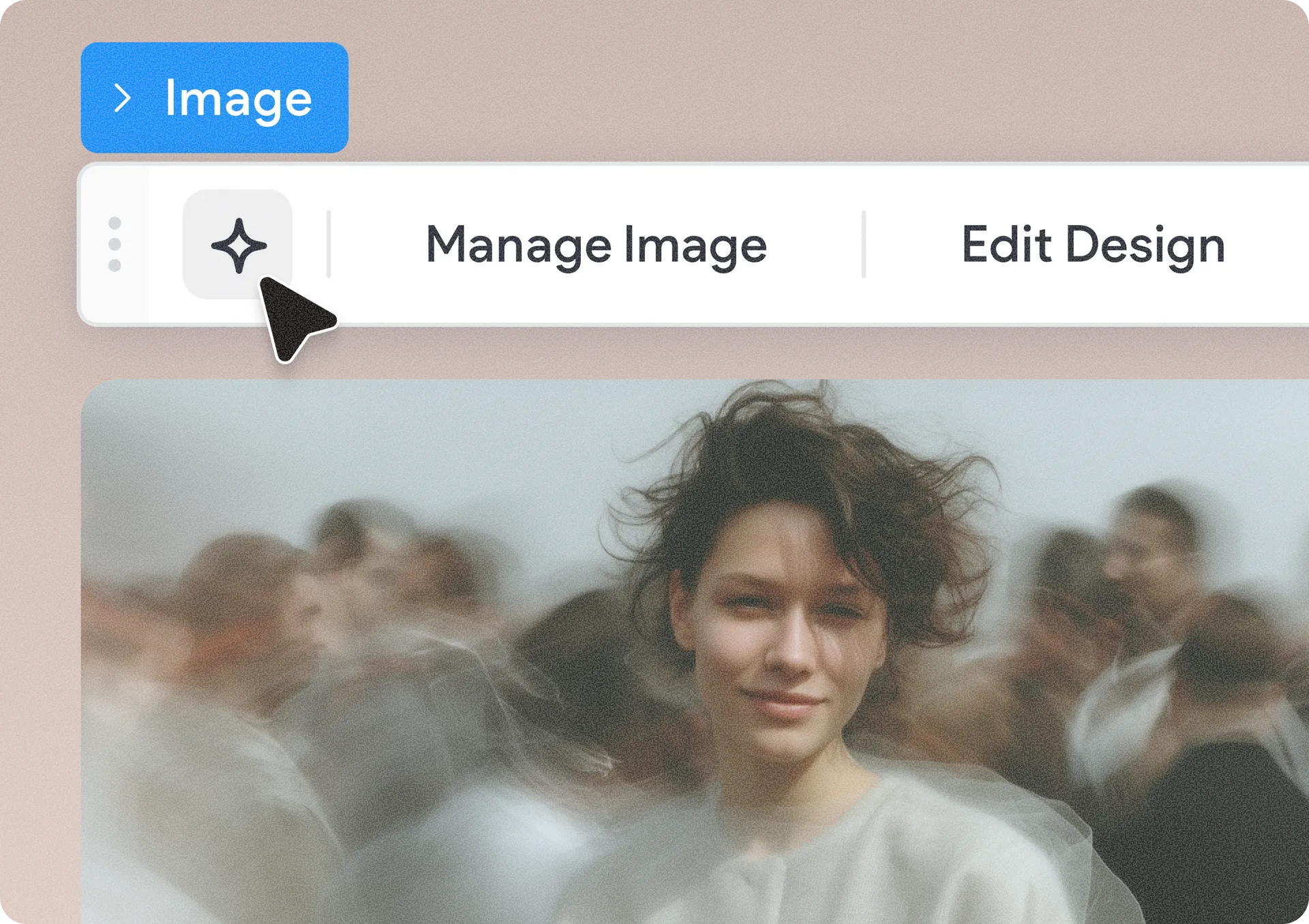
Generate Images with AI Directly in the Editor
Finding the right image for a site can be time-consuming, especially when searching stock libraries, switching between tools, and trying to match a client's vision. That's why we're excited to introduce a new AI-powered image generation capability built directly into the site editor.
You can now generate custom images with AI from the places where you already manage site visuals, without leaving your workflow. Whether you're updating a section background, replacing an image widget, or building a new page, creating the perfect image is now just a prompt away.
Generate images wherever you work with images
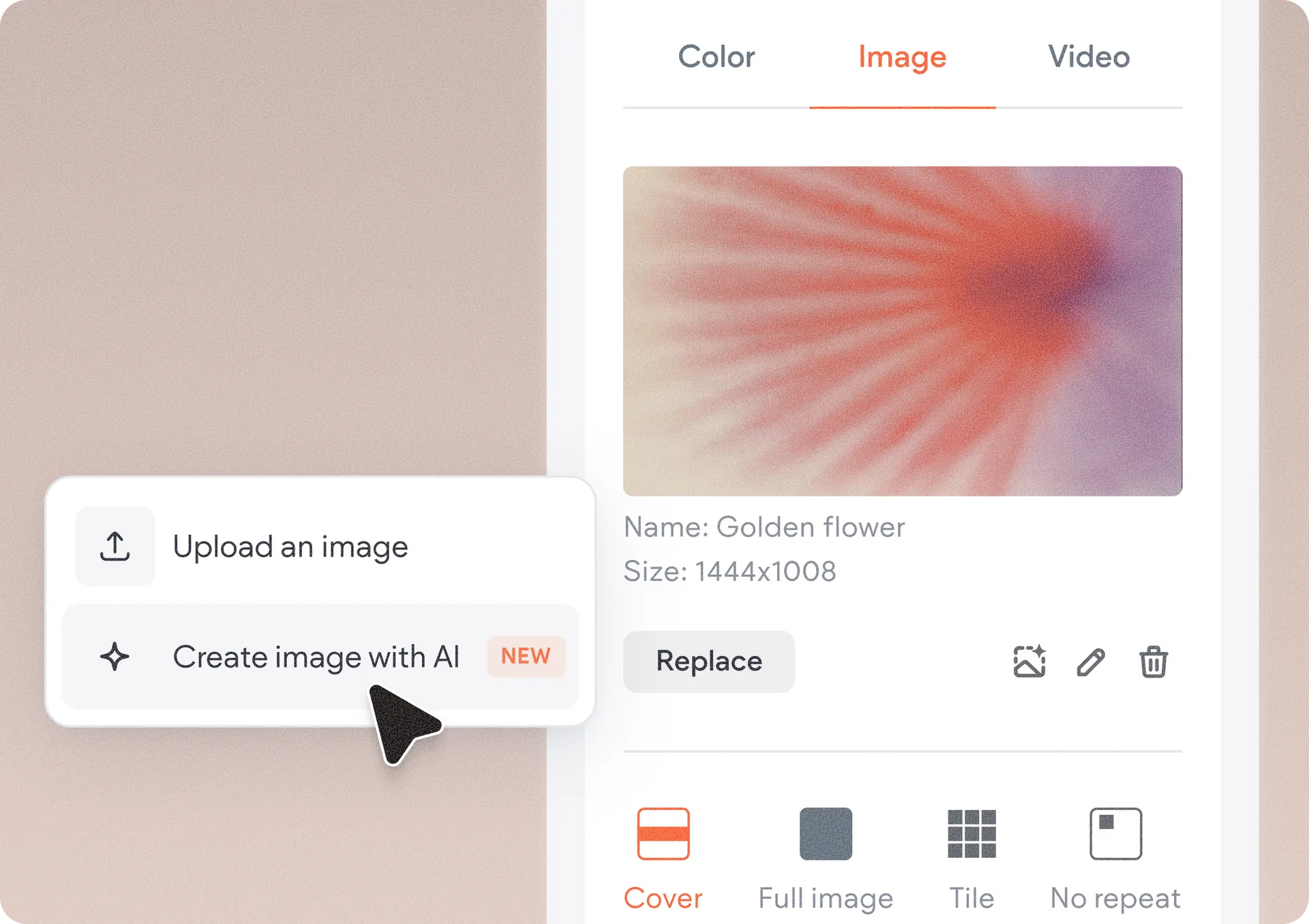
The new image generation option is available across the editor's core image management experiences, including:
Image widget
Background images
Media panel
Media manager
Image settings
Advanced Accordion widget
List widget
And others…
Simply click the image generation icon, describe what you're looking for in the chat box, and let AI create it for you. For example, you can enter a prompt like:
"Create an image of a veterinary doctor looking intently into the eyes of a cute golden retriever."
Within seconds, you'll receive a custom image tailored to your description and ready to use on the site.
Create unique visuals for any client
Need a modern coworking space for a startup website? A local bakery owner arranging fresh pastries? A luxury spa treatment room? Just describe the scene, style, or subject, and AI will generate original visuals that match your needs.
This gives you more creative flexibility while helping you build sites faster and with fewer compromises.
Refine results until they're just right
Image generation doesn't stop after the first result. Once an image is generated, you can:
Edit the prompt to regenerate it with your changes.
Generate new variations.
Reset and start over with a fresh concept.
This iterative workflow makes it easy to experiment with different ideas and quickly arrive at a visual that fits the design perfectly.
Faster design workflows, better results
By bringing AI image generation directly into the editor, you can spend less time searching for assets and more time building beautiful sites.
To get started:
Open any supported image management area in the editor.
Hit the image generation icon.
Enter a description of the image you'd like to create.
Generate your image and add it directly to your site.
Was this article helpful?
That’s Great!
Thank you for your feedback
Sorry! We couldn't be helpful
Thank you for your feedback
Feedback sent
We appreciate your effort and will try to fix the article