Smarter Button & Icon Customizations, Pro Design Tutorials & More
As we keep rolling out more updates and improvements to how you design and build sites with our main editor, here are a few worth mentioning that give you more design customization power.
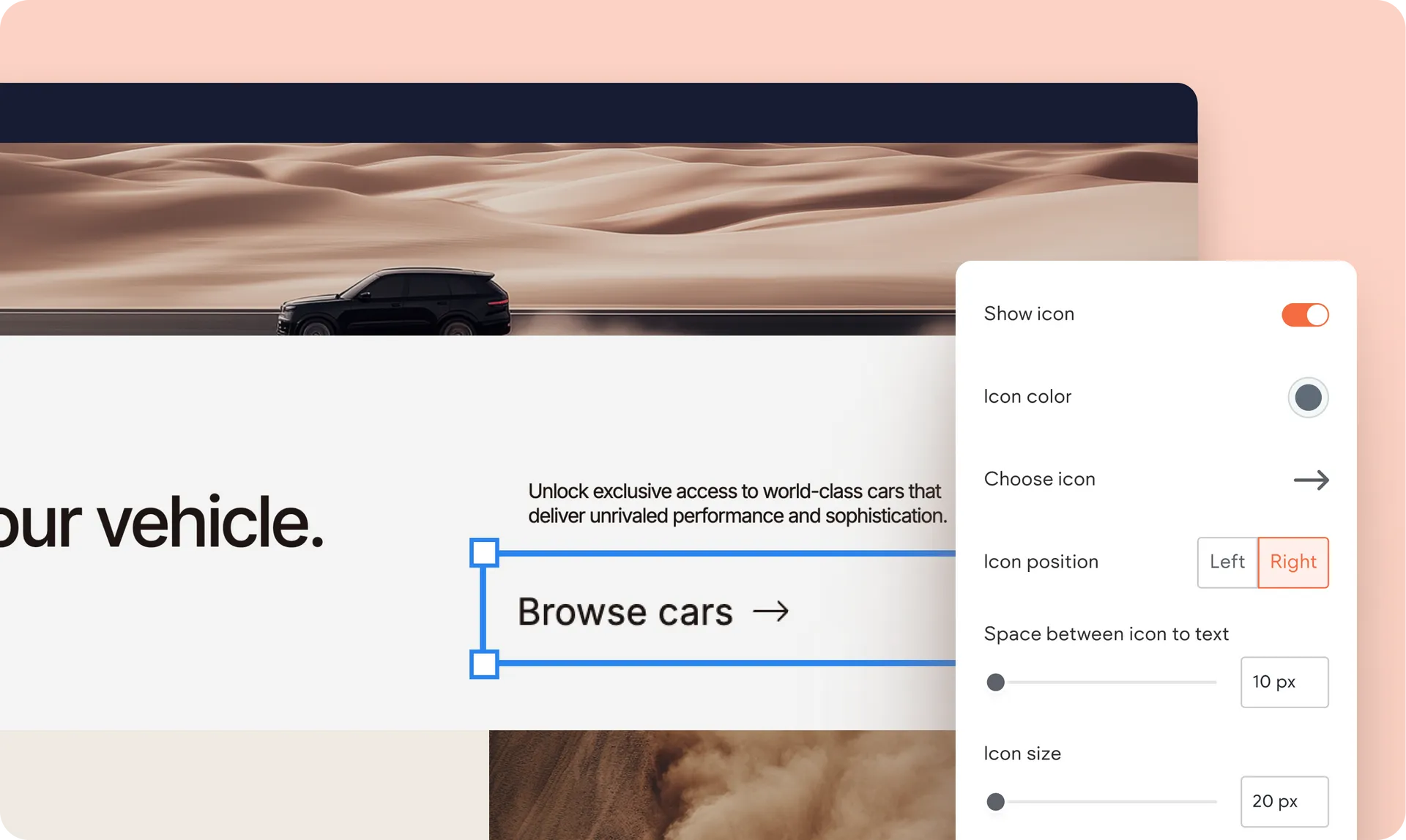
Design any button with any icon, any way you want
You now have a lot more design flexibility with multiple editing and customization options when working with buttons and icons. You can pretty much change and tweak any aspect of it:
Add any icon to any button layout (using any of the 1,000s of icons from a free library)
Change the icon’s position, hover color, or size
Change the distance between icon and button text
This applies to any new button you add to a site built with Editor 2.0, including the click-to-call, click-to-email, and mobile buttons in the Map widget.
How does this affect existing buttons you have on your sites? If your sites have buttons without icons and you wish to add icons to them, go to their design settings and toggle the show icon switch to enable it. For buttons with the previous icon version, go to the same design settings, then toggle the Icon option off, then on again to enjoy the new button with icon capability.
Create an effect where visitors see only the site navigation on scroll
You can now set your site header to show just the navigation widget as visitors scroll your site page. This is available in Editor 2.0 for advanced headers with multiple sections, where at least one of these contains a navigation widget.
How to set it up?
Enable the advanced header option, then add more sections to it.
Under the Scroll Behavior section in your header’s design panel, turn on the Set as sticky header and Change header on scroll options.
Turn on the Show only nav section on scroll option.
This works seamlessly across all breakpoints, and we also included this as a default effect in multiple Editor 2.0 templates for a cleaner, more focused navigation experience.
Revamped Learn area to help you design ‘wow’ effects
We’re adding more step-by-step tutorials to our Editor 2.0 library so you can quickly hone your advanced design skills and create engaging visual effects in the sites you build. These are available in the redesigned Learn panel, which you can quickly access right on the canvas as you design a site.
Within minutes, you can learn how to:
Create captivating text, images, and button cards
Use overlapping, responsive images
Create an engaging hero section
Set up a fixed newsletter signup form
Was this article helpful?
That’s Great!
Thank you for your feedback
Sorry! We couldn't be helpful
Thank you for your feedback
Feedback sent
We appreciate your effort and will try to fix the article